Every screen in the admin is laid out the same way.

The coloured band
- Your school crest and name, on the left.
- The address you signed in with, on the right.
- View the website opens the real website, so you can check your work.
- Sign out.
The tabs
Each tab is one part of the website. They are in the order a school uses them: the ones you touch every week come first.
| Tab | What it looks after |
|---|---|
| Pages | The ordinary pages of the website and the words on them. |
| Newsletters | The newsletter PDFs, by date. |
| News and notices | Short announcements, with a date they disappear. |
| Photos | Albums of photographs from school events. |
| Calendar | Term dates, assemblies and events. |
| Enrolment Form | The enquiry form, and where enquiries are emailed. |
| Contact details | The address, phone, email and map on the contact page. |
| Navigation | The menu across the top of every page. |
| Branding | The school name, the logo and the colours. |
| Who can edit | The staff who may sign in. Only some people see this tab. |
The list screens all look the same
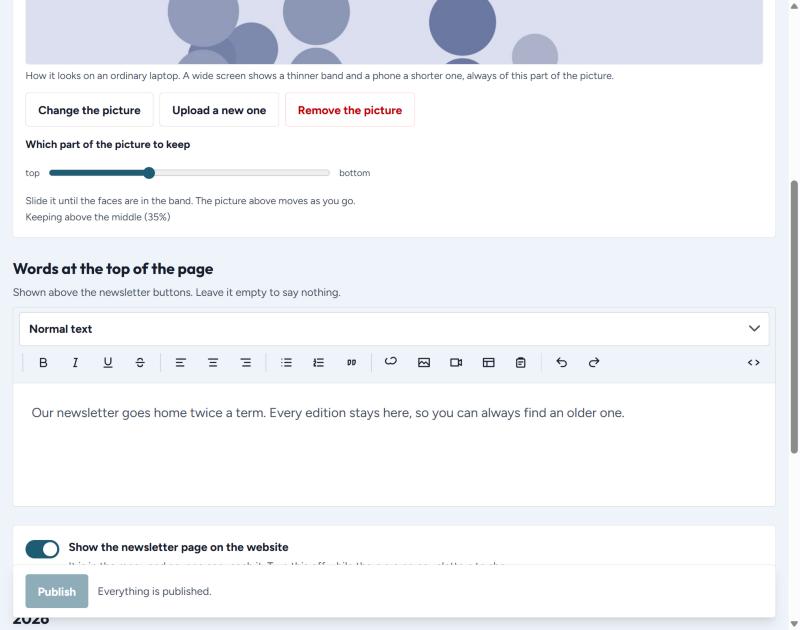
Newsletters, news and notices, photos and the calendar are built the same way. Learn one and you have learned all four. Each starts with the same three things:
- Picture across the top — the banner for that page.
- Words at the top of the page — a sentence or two above the list. Leave it empty to say nothing.
- A switch that puts the page on the website, or takes it off.
Every school has every tab
Even if your school has no photo albums or no calendar yet, the tab is still there. A school with no photographs this term may have some next term, and you should not have to ask anyone to switch it on.